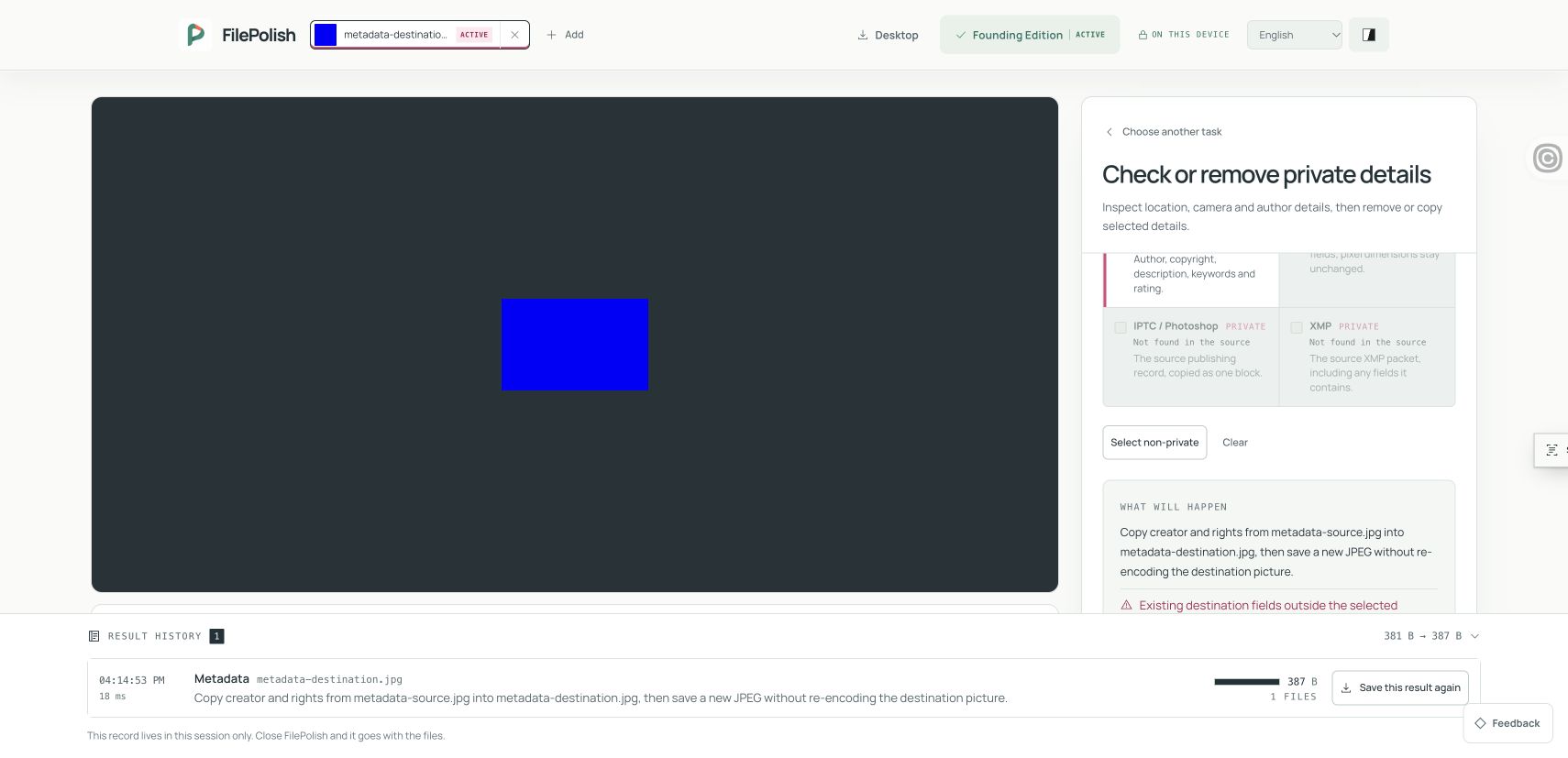
Choose the photo that should receive the details, then select a source in the same format. Copy only the metadata categories you need without re-encoding the destination picture.
Choose the destination image · JPEG to JPEG or HEIC to HEIC · one free destination · no account
How to use this tool
Open the destination first
Choose JPEG → JPEG or HEIC → HEIC, then open the image whose visible picture you want to keep. One destination is free with no account.
Choose and inspect the source
Use Choose source JPEG or Choose source HEIC to select another image in the same format. Review the categories found in that source; every checkbox starts clear.
Select, copy and inspect
Choose only the categories that belong on the destination. Run the copy action for the selected categories, save the new image and inspect its metadata. The source picture is not copied.
Worked example: fictional creator details copied to a JPEG
In this agent-run synthetic example on 7 November 2026, only Creator and rights was selected. The destination Artist value changed from “Destination Demo” to “FilePolish Demo Studio”. The JPEG grew from 381 to 387 bytes, stayed 160 × 100 pixels and retained the same compressed image scan. These names are fictional. Results vary; this example does not verify every category or file.
Selected category
Creator and rights only
Destination Artist before
Destination Demo
Saved Artist value
FilePolish Demo Studio · fictional
Destination and saved size
381 → 387 bytes · 160 × 100 px
Picture preservation
Compressed JPEG scan unchanged · source picture not copied
The source supplies details; the destination keeps its picture
It is easy to reverse these two files. The destination is the photograph whose visible image you want to keep. The source supplies the selected metadata. Opening a destination first makes that distinction clear before you choose which details should move.
Copying is supported within one format: JPEG to JPEG or HEIC to HEIC. It is not a HEIC-to-JPEG conversion and does not replace the destination photograph with the source photograph. FilePolish rewrites the container around the destination’s encoded image data rather than decoding and compressing the picture again. The browser saves a new copy and leaves both originals unchanged.
Choose categories deliberately, especially private details
The source may contain Dates and times, GPS location, Camera and lens, Capture settings, Creator and rights, Orientation and print size, IPTC / Photoshop or XMP. Only categories actually found in the source can be selected. These are category-level choices; an IPTC record or XMP packet can contain several fields.
Every checkbox starts clear. Select non-private chooses the available Capture settings and Orientation and print size categories. Dates, GPS, camera/lens identification, creator details, IPTC and XMP still need a deliberate choice. Review the selection even when using the shortcut: orientation can change how the destination appears rotated without changing its encoded pixels.
What changes when selected metadata is copied
Copying a selected category replaces that category’s destination fields with the source records. Existing destination fields outside the selected categories stay in place. Source thumbnails are not copied, because a thumbnail can show an older crop or a different photograph.
Capture dates inside metadata are different from a downloaded file’s filesystem dates, and applications may sort images using different fields. Copy only details that accurately describe the destination. After saving, reopen the copy in a metadata viewer and check the chosen categories as well as the visible image.
Need to remove private metadata instead?
Copying metadata and removing it are separate tasks. If you want to share a photo without its attached GPS, dates or identifying details, use Remove EXIF & GPS instead. That page supports container-based removal for JPEG, PNG and WebP; it is not this same-format copy workflow.
If no selectable metadata is found in the source, there are no source categories for this tool to copy. Choosing a different source may help, but changing a filename extension does not change the image format. For HEIC originals on iPhone, choose Browse / Files when needed: the Photo Library picker may supply a JPEG copy rather than the HEIC original.