Choose a photo or graphic and start with a 1 MB limit already set. FilePolish adjusts quality, reduces dimensions if needed and shows the measured result before you save.
Choose an image for 1 MB · One image · 1 MB = 1,000,000 bytes · original kept
Open the original photo or graphic. The size limit is already set to 1,000,000 bytes; review the proposed output format before processing.
Find a readable fit
FilePolish measures actual encoded files while adjusting quality. If quality alone cannot meet the limit, it can reduce the pixel dimensions proportionally.
Review, save and reopen
Check the pass or miss, final size and dimensions. Inspect small text and important detail, then save the new copy and open it before submitting.
Worked example: a synthetic image under 1 MB
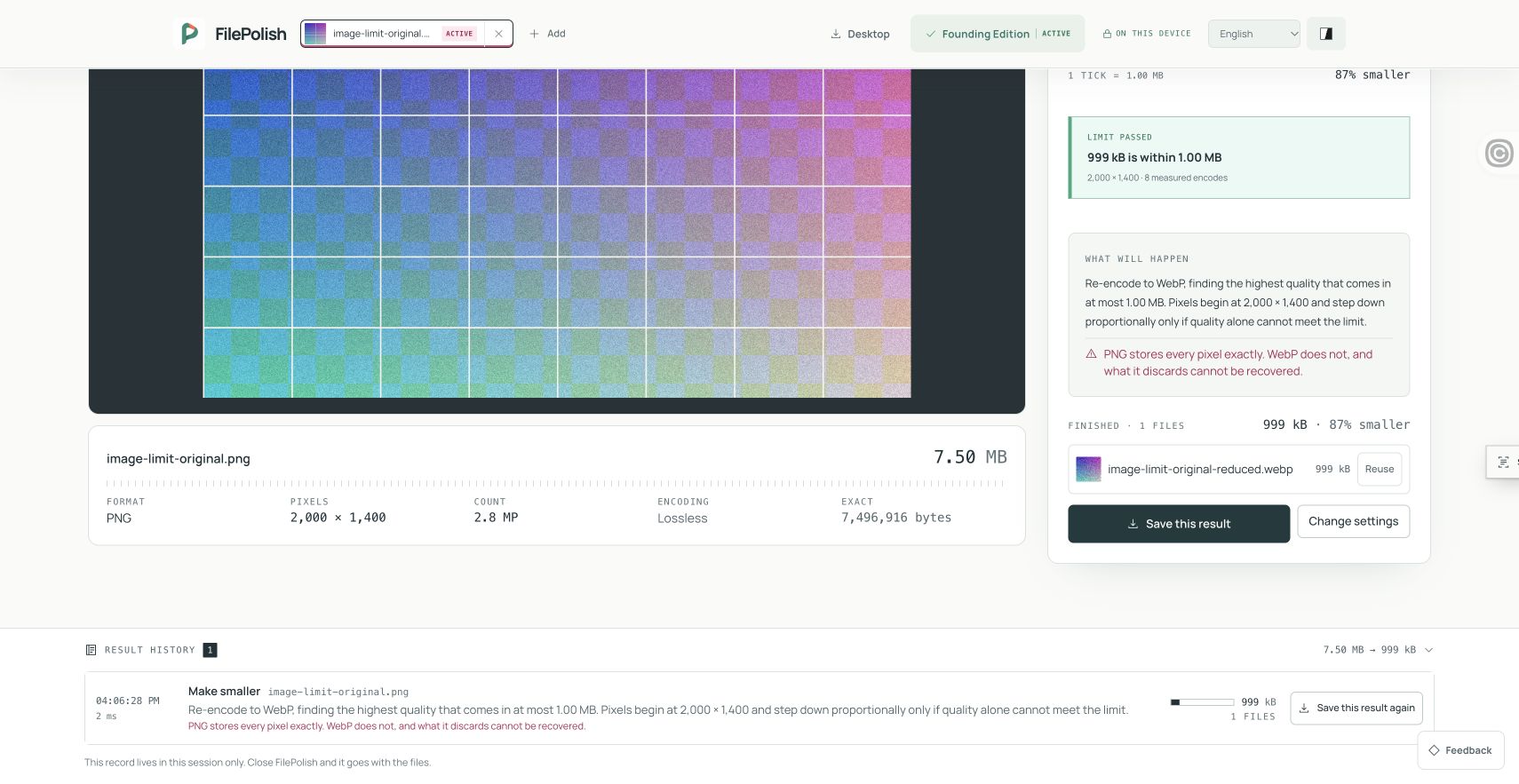
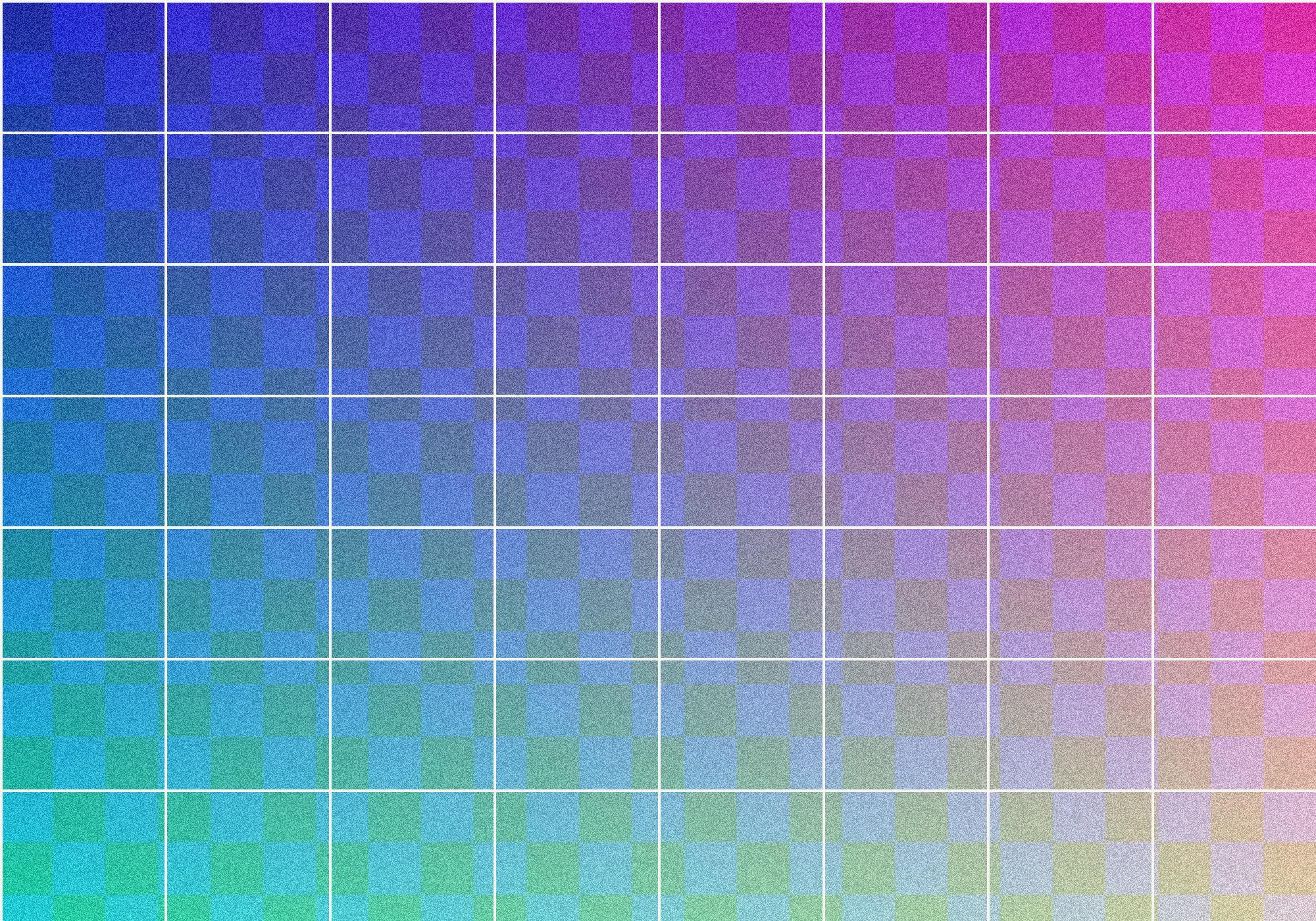
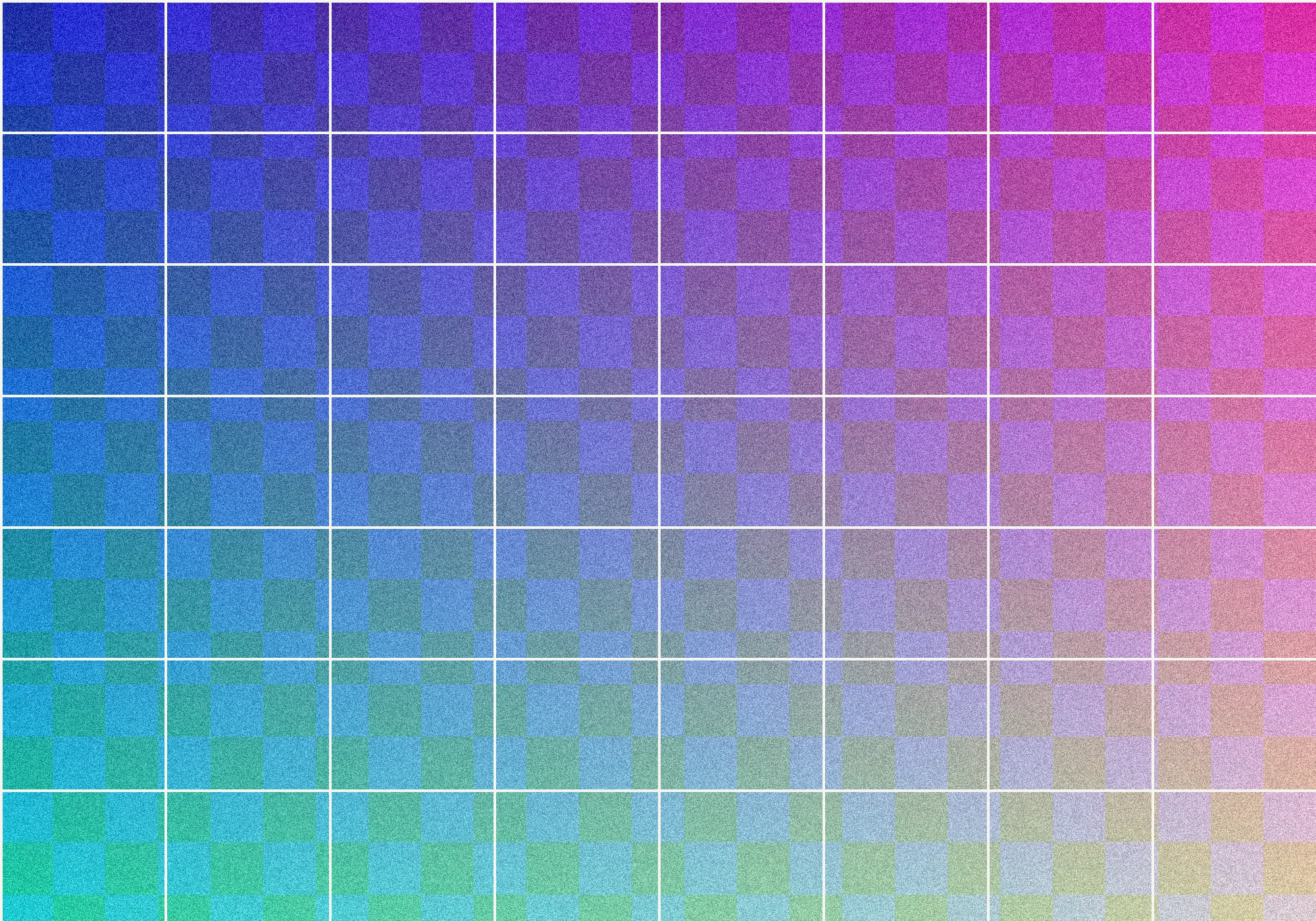
In this agent-run synthetic example on 7 November 2026, a 7,496,916-byte PNG became a 998,764-byte WebP against a 1,000,000-byte ceiling. Both files are 2,000 × 1,400 pixels. The saved result passed this ceiling, using lossy compression and 8 measured encodes. Results vary; this one example does not guarantee the size or quality of other files.
A form asking for an image below 1 MB does not tell you which JPEG quality or pixel dimensions will work. A detailed photograph and a simple screenshot can produce different file sizes at the same settings. FilePolish works toward the size limit and measures the actual output instead of estimating a percentage reduction.
Here, 1 MB means 1,000,000 bytes. The result passes this ceiling when its encoded file is at or below that number. A receiving website may also require a particular format, minimum dimensions or a strictly smaller byte count. Check those requirements as well as the size before submitting.
Choose the format the receiving site accepts
JPEG is often a practical choice for a photograph when the receiving form accepts it. A graphic with transparency may need a format that supports transparency, such as PNG or WebP. Selecting JPEG removes transparency. Supported input formats vary by browser and file, so opening a format is not a promise that every image in that format can be decoded.
The saved result may use lossy compression, fewer pixels or a different format. Re-encoding also removes camera, GPS and descriptive metadata from the new copy. FilePolish keeps the aspect ratio during size fitting and leaves the original file untouched in this browser workflow. Review the result rather than relying on its file size alone.
When a smaller image loses too much detail
Quality and pixel dimensions solve different problems. Lower quality can create visible blocks or blurred edges without changing the image width and height. Reducing dimensions removes pixels. If the result contains small writing, a signature or a detailed diagram, enlarge it after saving and check that the important parts remain readable.
If a required minimum resolution and the byte ceiling cannot both be met with an acceptable result, keep the original and check whether the recipient offers another format or submission route. A file that fits the size limit is not automatically suitable for the task.
Why can an upload form still reject the saved file?
The form may reject the format, dimensions, filename or a file exactly on its boundary. It may also use MB differently from this tool. Read the form’s complete error message, inspect the saved file and use a smaller custom ceiling if the recipient requires one. Renaming a file to .jpg does not convert its contents.
For a different limit, use the custom image-size page or the existing 500 kB, 200 kB and 2 MB pages. Keep the original so you can try another balance of format, quality and dimensions.