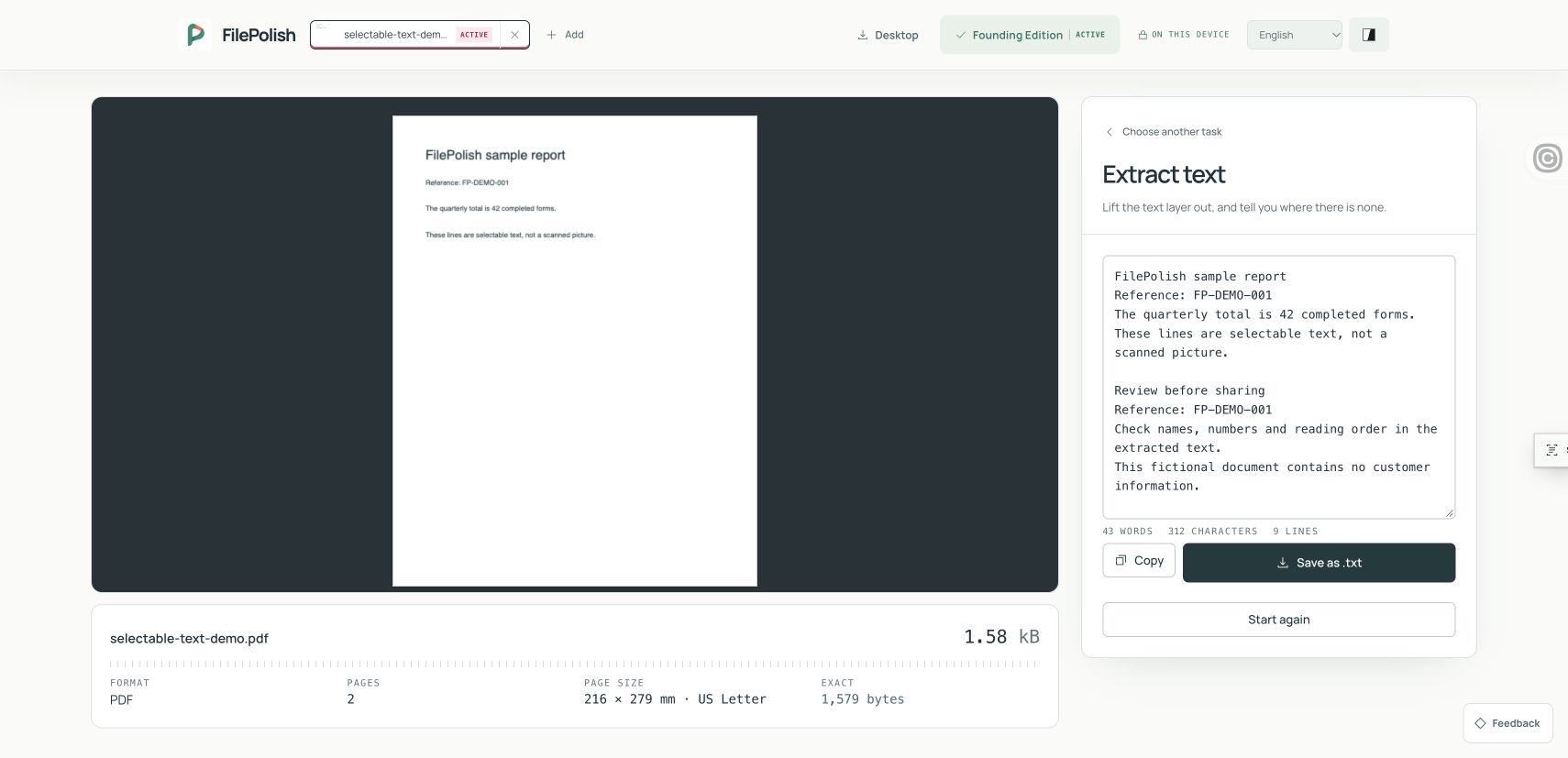
Open a PDF, read its existing text layer and review the words in an editable workspace. Copy what you need or save a TXT file. Scanned pages can be recognised separately on your device.
Choose a PDF to read · Selectable text first · local OCR offered for pages with no text
How to use this tool
Extract the existing text
Choose your PDF, then select Extract the text. FilePolish reads each page’s text layer locally and places the result in an editable workspace.
Check any scanned pages
Pages with no extracted text are named. If needed, choose the scan’s language and use Recognise to read those pages with local OCR.
Edit, copy or save TXT
Compare important words and numbers with the original PDF. Correct the text, then use Copy or Save as .txt. The original PDF stays unchanged.
Worked example: selectable PDF text saved as TXT
In this agent-run synthetic example on 7 November 2026, a 2-page, 1,579-byte PDF produced a 312-byte TXT file. The workspace showed 43 words across 9 lines, including one blank line. All 8 source content lines were compared with the saved text. This PDF already had selectable text, so no OCR was needed or exercised. Results vary with the document.
Use existing PDF text before recognising the page image
A PDF made from a document editor often contains selectable words. A scanned PDF may contain only pictures of those words. FilePolish extracts the existing text layer first so it can reuse characters already stored in the PDF instead of guessing them from an image.
The extracted words appear in an editable workspace. You can remove repeated headers, correct line breaks, copy a passage or save the full result as a plain TXT file. The source PDF is not changed. The downloaded TXT file contains the text you see in the workspace, including any edits you make there.
What to do when a page produces no text
No extracted words does not necessarily mean an empty page. A scan, photograph or outlined lettering may have no usable text layer. FilePolish identifies pages where it found no text and offers recognition in the same tool. Choose the appropriate language and use the Recognise action for those pages.
OCR runs on your device. The first use of a language may download a recognition model from its public data host; the PDF page images are not uploaded to that host. Recognition can misread handwriting, small print, stamps, shadows and unusual layouts. Compare names, dates, amounts and other important details with the visible page before relying on them.
Plain text keeps the words, not the page design
A TXT file does not retain the PDF’s fonts, colours, pictures, page layout or interactive controls. FilePolish groups text fragments by their page positions, but columns and tables can still need manual cleanup. Text order depends partly on how the source PDF stored its content.
If your goal is to reproduce the original document’s formatting in Word or another editor, plain-text extraction is only a starting point. Keep the PDF beside the result while reviewing headings, reading order and table values. A clean-looking output is not proof that every character was extracted correctly.
Copy or download the text you have reviewed
Use Copy when you need the words in another application. If the browser blocks clipboard access, select the text in the workspace and copy it manually. Use Save as .txt when you want a separate file to open later. The TXT result can contain the same private information as the PDF, so choose where you share it.
The image-to-1 MB and PDF-compression tools handle different jobs: making an upload fit does not extract its text. Choose the tool that matches what the receiving person or form actually needs.